How to Connect Stripe and Churnkey
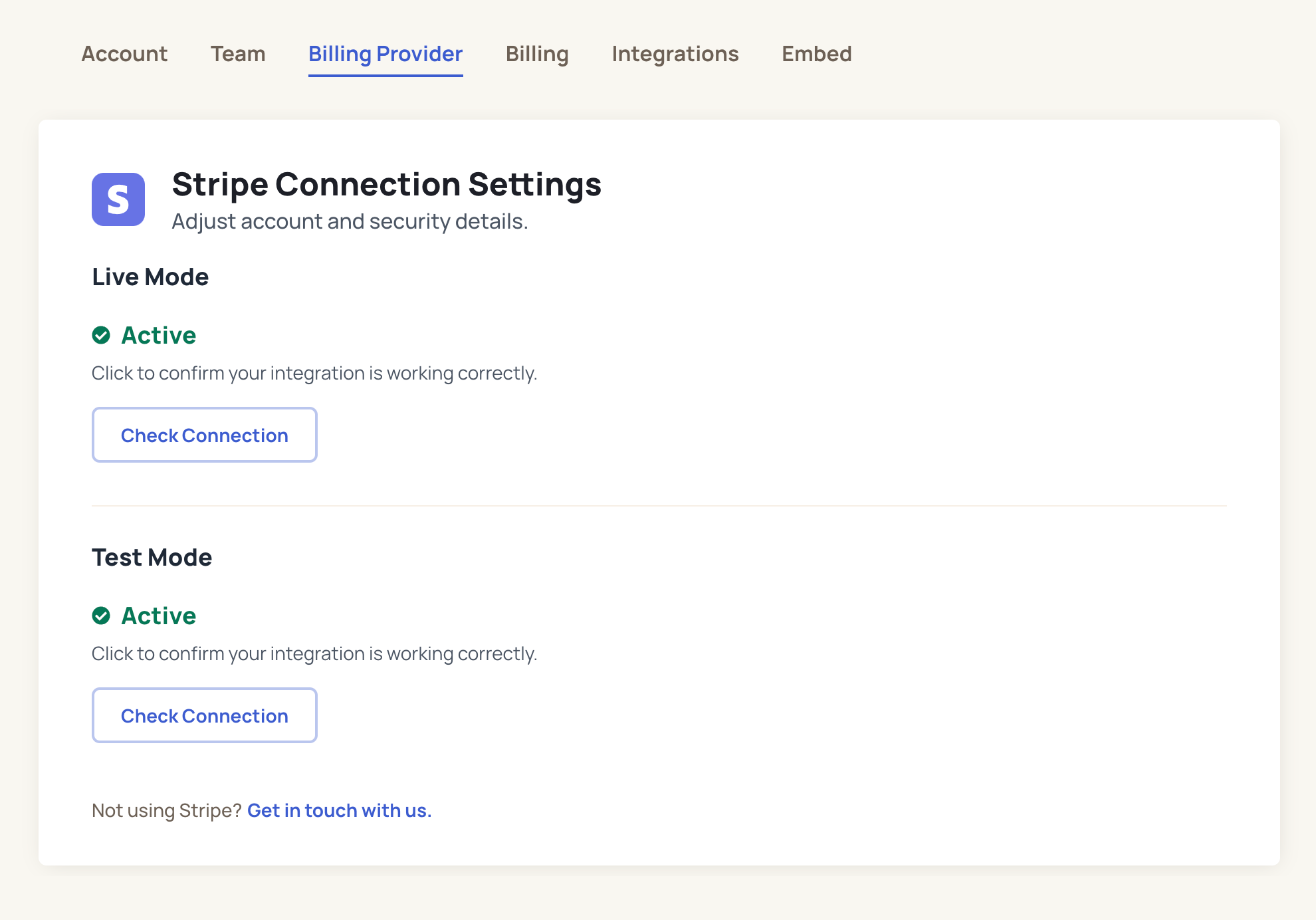
After you register for a Churnkey account, you can connect it to your Stripe account on our Settings | Billing Provider page.
Once your account has been successfully connected, you should see something like this:
How is the Stripe connection used?
I. Add discounts to your Cancel Flow
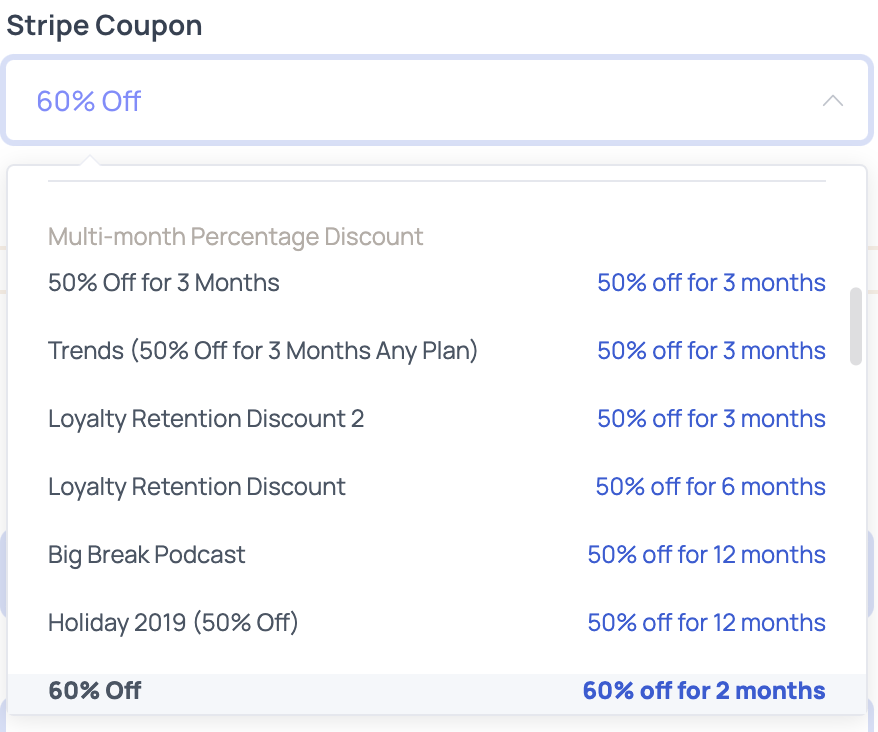
After you connect Stripe (live mode), you'll be able to offer your customers temporary discounts as part of your Cancel Flow. Please note that you will only see your Stripe coupons after you've connected your live Stripe account. We only pull in coupons from the live account, not your Stripe test account.
- In the "Offers" tab of the flow builder, choose "Apply Stripe Coupon"
- Choose the coupon you'd like to offer customers in the dropdown labeled "Stripe Coupon"
II. Personalize Cancel Flows with customer attributes and segmentation
Use customer segmentation to reduce voluntary churn with targeted Cancel Flows. With segmentation, you can target specific customers based on subscription attributes and serve up unique Cancel Flows for each of them. After all, someone who signed up yesterday should be spoken to differently from a customer who's been a paying subscriber for years.
🚀 Customer Segmentation Launch Details
Available attributes for segmentation
- Plan
- Price
- Subscription age
- Subscription creation date
- Billing interval (monthly, annual, etc)
- Trial vs Active subscription
III. Updating customer subscriptions on your behalf
When a customer goes through your Cancel Flow and (hopefully) accepts a pause or discount offer, Churnkey takes care of the billing updates for you.
Churnkey is able to perform the following actions on your behalf
- Pause a subscription
- Apply a discount
- Change the subscription plan
- Cancel a subscription
- Create a new subscription via reactivation campaigns
We'll look at each one of these in a little bit more detail.
Pause Subscription
Churnkey uses Stripe's built-in pause feature which will update the subscription's pause_collection[behavior] to mark_uncollectible. The resumes_at field will automatically be set by Churnkey depending on the length of the pause selected.
You can specify the maximum pause length allowed by customers while configuring your offboarding flow.
When a customer chooses to temporarily pause their account, if a subscription ID was provided when initializing the Churnkey embed, the subscription under that ID will be canceled. If just a customer ID is provided, each active subscription will be paused.
If you would like to implement a custom function for handling pause events, you can do so using the handlePause callback (see Custom Callbacks).
Apply a Discount
In the Churnkey offer builder, you can offer specific discounts to customers. These discounts are populated based on the coupons that you have created in your Stripe account.
When a customer accepts a discount, if a subscription ID was provided when initializing the Churnkey embed, the coupon will be applied to that subscription with stripe.subscriptions.update. If just a customer ID is provided, that coupon is applied directly to the Stripe customer account via stripe.customers.update.
If you would like to implement a customer function for applying discounts, you can do so using the handleDiscount callback (see Custom Callbacks).
Plan Change
The specific subscription is updated to the new plan via stripe.subscriptions.update . You can optionally set to not prorate changes.
Cancel Subscription
Churnkey can handle canceling your customer's subscription for you. By default, a customer's subscription will be set to cancel at the end of the current period, but this behavior can be modified to cancel a user's subscription immediately.
When a customer chooses to cancel their account, if a subscription ID was provided when initializing the Churnkey embed, the subscription under that ID will be canceled. If just a customer ID is provided, each active, delinquent, and past due subscription will be canceled.
Under the hood, Churnkey follows Stripe's best practices on canceling:
I. If not using subscription schedules:
- For active and trialing subscriptions, they are set to cancel at the end of the term via
stripe.subscriptions.update(subscriptionId, { cancel_at_period_end: true }). If you have set subscriptions to cancel immediately in your Cancel Flow settings, subscriptions will cancel immediately viastripe.subscriptions.del. - Inactive customer subscriptions are always canceled immediately via
stripe.subscriptions.del.
II. If using subscription schedules
- For active and trialing subscriptions, the subscription schedule is first released via
stripe.subscriptionSchedules.release, and then is set to cancel at the end of the term viastripe.subscriptions.update(subscriptionId, { cancel_at_period_end: true }). If you have set subscriptions to cancel immediately in your Cancel Flow settings, subscriptions will be released from their schedule and then canceled immediately viastripe.subscriptions.del. - Inactive customer subscriptions are canceled immediately via
stripe.subscriptionSchedules.cancel
If you would like to implement a customer function for canceling subscriptions, you can do so using the handleCancel callback (see Custom Callbacks).
Creating New Subscriptions via Reactivations
If you are using Churnkey Reactivation campaigns, Churnkey will handle reactivating your customer's subscription. When a customer chooses to reactivate their account, Churnkey will create a subscription identical to the one that was previously canceled that triggered the Reactivation campaign. This is done with stripe.subscriptions.create. All subscription data, including metadata, will be copied over to the new subscription.
IV. Calculating boosted revenue
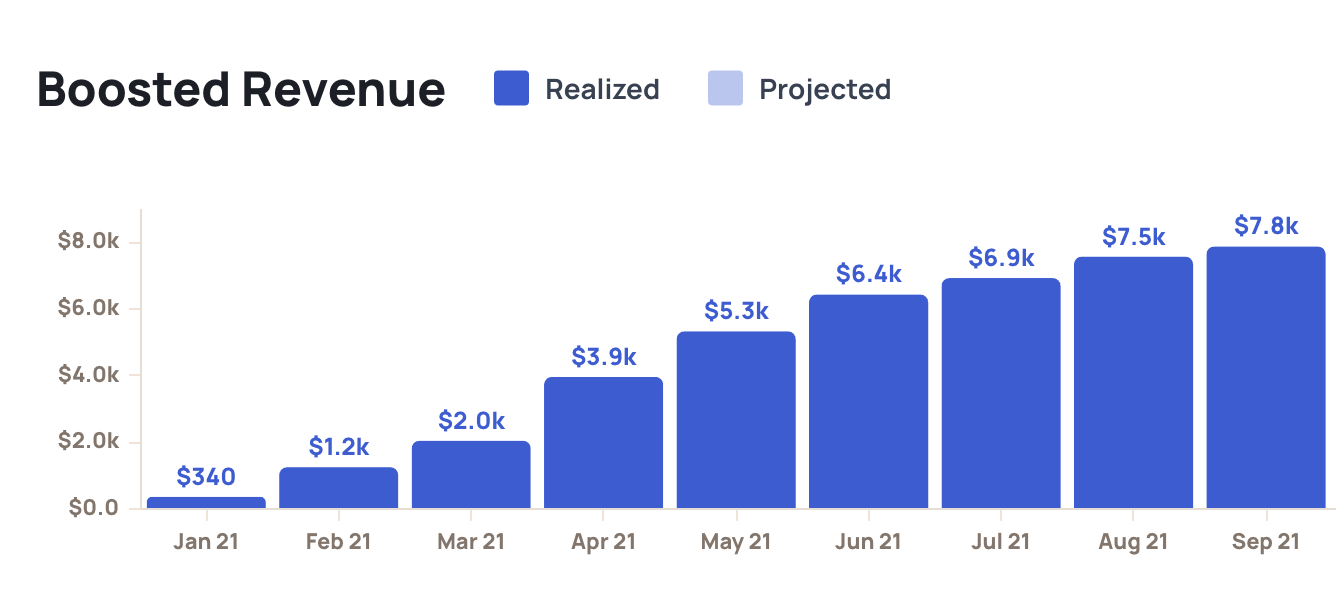
Once you've connected your Stripe account, you'll be able to track customer reactivations and boosted revenue - that's all the extra revenue you receive from customers who stayed on instead of cancelling.
You can track boosted revenue on your Churnkey dashboard.
V. Stripe Sandbox Mode
Churnkey supports a dedicated Stripe Sandbox environment in addition to the standard Live and Test modes. Sandbox mode connects to a completely separate Stripe sandbox account, giving you an isolated space to test Cancel Flows, Payment Recovery, Reactivation campaigns, and analytics without any risk to your live or test data.
This is different from Churnkey's existing Test mode. Test mode shares your main Stripe account's test credentials. Sandbox mode connects to a separate Stripe sandbox account entirely, meaning the customers, subscriptions, coupons, and invoices inside the sandbox are fully independent from both your live and test environments.
Why use Sandbox mode?
Test mode works well for quick validations, but it still shares the same Stripe account as your live environment. That overlap can create noise: test customers appear alongside real ones, test coupons might conflict with production coupons, and accidental changes in one context can affect the other.
Sandbox mode eliminates that problem. Because it connects to a separate Stripe sandbox account, everything inside it is isolated. You can freely create test customers, trigger failed payments, run dunning campaigns, and experiment with cancel flow configurations without worrying about unintended side effects. This makes Sandbox mode the ideal choice for staging environments, QA testing, onboarding new team members, or validating complex flows before going live.
Connecting your Stripe Sandbox
Navigate to Settings | Billing Provider in the Churnkey dashboard. Below your existing Live and Test connections, you will see a Sandbox Mode section.
Click "Connect Stripe Sandbox" to begin the connection process. This redirects you to Stripe's authorization page, where you select (or create) the Stripe sandbox account you want to connect. After you authorize access, Churnkey saves the sandbox credentials automatically and returns you to the settings page.
If you prefer to connect manually, you can enter a sandbox API key directly. Stripe sandbox keys follow the same sk_test_* format as test keys, but they belong to your separate sandbox account. Paste the key into the sandbox API key field and click "Check Connection" to verify that Churnkey can communicate with the sandbox account successfully.
sk_test_* prefix. The difference is which Stripe account they belong to. Your sandbox key comes from a separate Stripe sandbox account, while your test key comes from your main Stripe account's test mode. Churnkey stores and manages these credentials independently.Switching to Sandbox mode
Once your Stripe sandbox is connected, a mode selector appears in the top-right corner of your Churnkey dashboard pages. This dropdown shows three options: View Live Data, View Test Data, and View Sandbox Data. Select "View Sandbox Data" to switch your dashboard context to the sandbox environment.
When Sandbox mode is active, the dashboard displays only data from your sandbox Stripe account. Analytics charts, session logs, customer profiles, and campaign metrics all reflect sandbox activity exclusively. Switching back to Live or Test mode restores the corresponding data view instantly.
Sandbox in Cancel Flows
Cancel Flows work the same way in Sandbox mode as they do in Live and Test modes. When you initialize the Churnkey embed with mode set to sandbox, the Cancel Flow pulls customer data, subscription details, and coupons from your sandbox Stripe account. This lets you walk through the entire cancellation experience, including discount offers, pause offers, and plan changes, against sandbox data.
window.churnkey.init('show', {
  customerId: 'cus_sandbox_xxx',
  authHash: 'YOUR_HMAC_HASH',
  appId: 'YOUR_APP_ID',
  mode: 'sandbox', // connects to your Stripe sandbox account
  provider: 'stripe',
})
When a Discount Offer step is reached in Sandbox mode, Churnkey displays a coupon selector dropdown populated with coupons from your sandbox Stripe account, just like it does in Test mode. If the coupon configured in your Cancel Flow exists in the sandbox account, it is selected automatically. Otherwise, you can pick any available sandbox coupon from the dropdown to test the discount experience end-to-end.
Sessions triggered in Sandbox mode display a blue "Sandbox" badge in the activity stream, making it straightforward to distinguish sandbox sessions from live or test activity. Clicking on a sandbox session's customer link navigates to that customer's profile with the ?mode=sandbox parameter, keeping you in the sandbox context.
Sandbox in Payment Recovery (Dunning)
Payment Recovery campaigns support Sandbox mode through a mode selector that appears when a sandbox account is connected. Select Sandbox from the mode dropdown on the Payment Recovery page to configure and test dunning campaigns against your sandbox Stripe data.
There is one important difference when testing Payment Recovery in Sandbox mode: you must provide a Stripe Invoice ID rather than a customer ID to initiate a test campaign. This reflects how Stripe sandbox invoice objects work and ensures the campaign targets the correct payment attempt within the sandbox environment.
Sandbox in Reactivation campaigns
Reactivation campaigns also support Sandbox mode. When the sandbox environment is selected, reactivation workflows operate against sandbox customers and subscriptions. This allows you to simulate the full reactivation flow, from the initial email trigger through to the new subscription creation, without affecting real customer data.
Webhook behavior in Sandbox mode
Churnkey receives webhook events from your sandbox Stripe account. However, sandbox events (like all test-mode events) are filtered out in production environments by design. This means that dunning emails and payment recovery actions are not triggered by sandbox failed payments in production.
This filtering prevents accidental emails from being sent to sandbox customers. If you need to verify the full webhook-driven dunning flow end-to-end, use the Campaign Preview tool on the Payment Recovery page with the Sandbox mode selector instead.
Disconnecting Sandbox
If you no longer need the sandbox connection, navigate to Settings | Billing Provider and click "Disconnect Sandbox" in the Sandbox Mode section. This removes the sandbox credentials from Churnkey. Your live and test connections remain unchanged.
You can reconnect a sandbox account at any time by following the connection steps above. Previous sandbox session data is retained in Churnkey's records even after disconnecting.