Test in Churnkey
The first and most simple way to test your Churnkey Cancel Flows is by utilizing the eye icon button within the editor. The allows you to click through the flow to see the modal in real time.
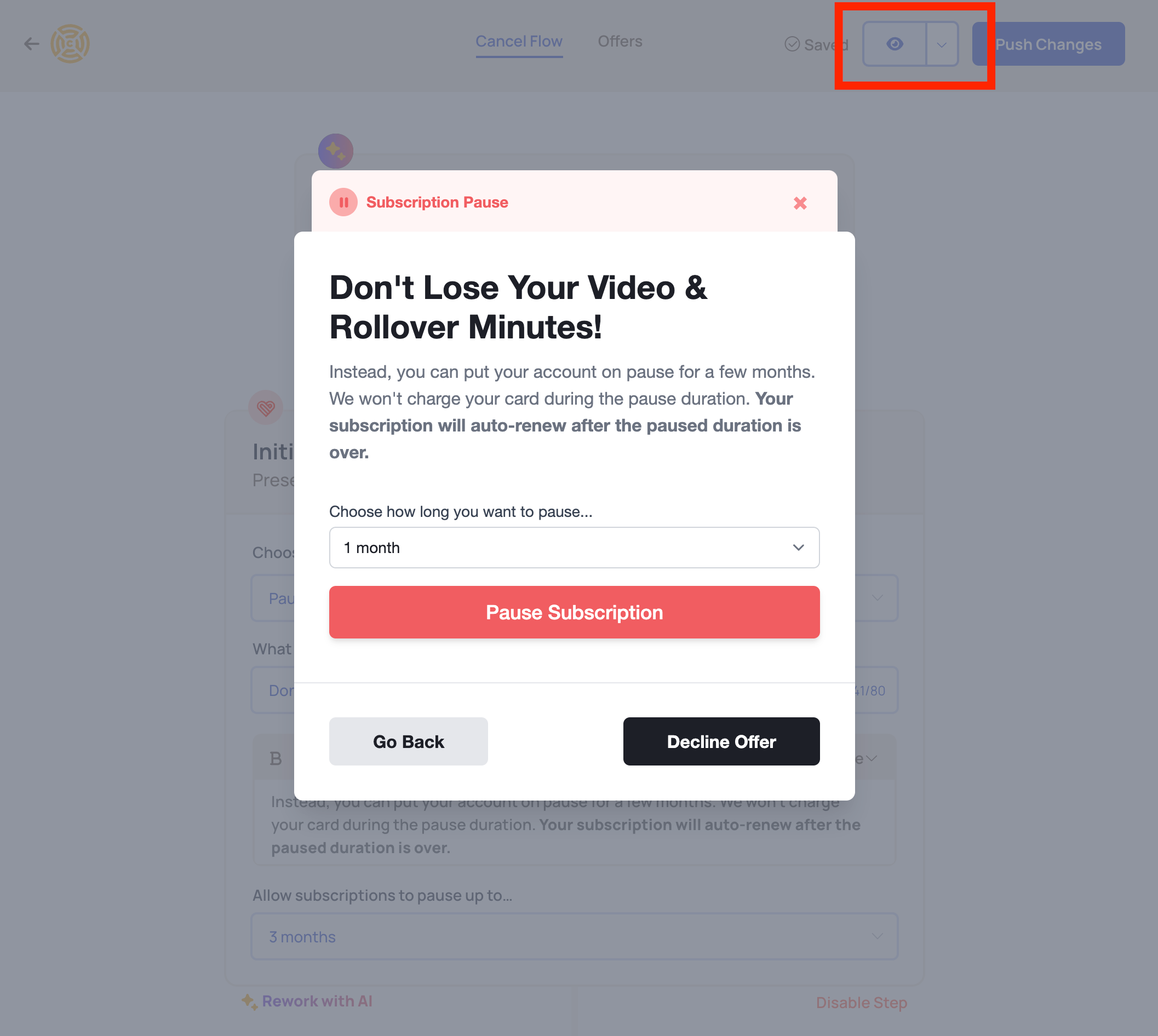
Use the eye icon in the Cancel Flow editor to view your Cancel Flow modal.
Live mode vs Test mode vs Sandbox mode
In your Churnkey modal embed code, you can switch between 'test', 'live', and 'sandbox' modes by setting the mode parameter. Refer to 'Step Three' of the Quick Start Guide for details.
Live mode
When your Cancel Flow is in live mode, the Churnkey Cancel Flow only looks for live customers and live coupons from your payment provider.
Test mode
When your Cancel Flow is in test mode, the Churnkey Cancel Flow only looks for test customers and test coupons from your payment provider.
Sandbox mode
When your Cancel Flow is in sandbox mode, the Churnkey Cancel Flow pulls customer data, subscriptions, and coupons from your connected Stripe sandbox account. Sandbox mode requires connecting a separate Stripe sandbox account in Settings | Billing Provider. See the Stripe Sandbox Mode documentation for setup instructions.
View Test Data and Sandbox Data
Use the dropdown in the top-right corner to switch between viewing live, test, and sandbox data in the Cancel Flows dashboard. The "View Sandbox Data" option appears only when a Stripe sandbox account is connected.
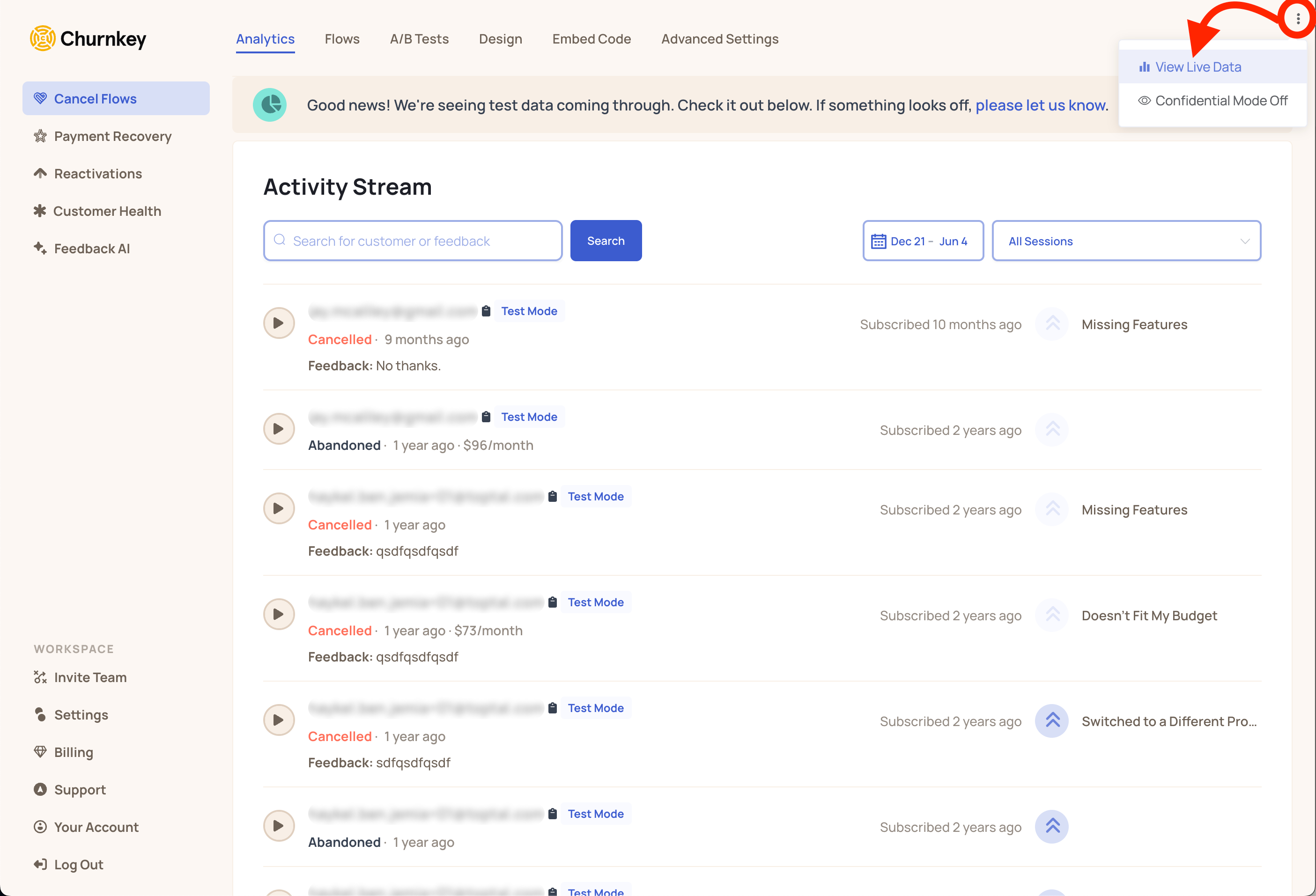
By clicking the dropdown in the top right hand corner of the Cancel Flows | Analytics page, you can switch between viewing live, test, and sandbox data.